Log your retro games with RetroAchievements
Connect RetroAchievements with your username and Web API key to import your retro games, consoles, playtime and achievements into playedby.me.
On this page
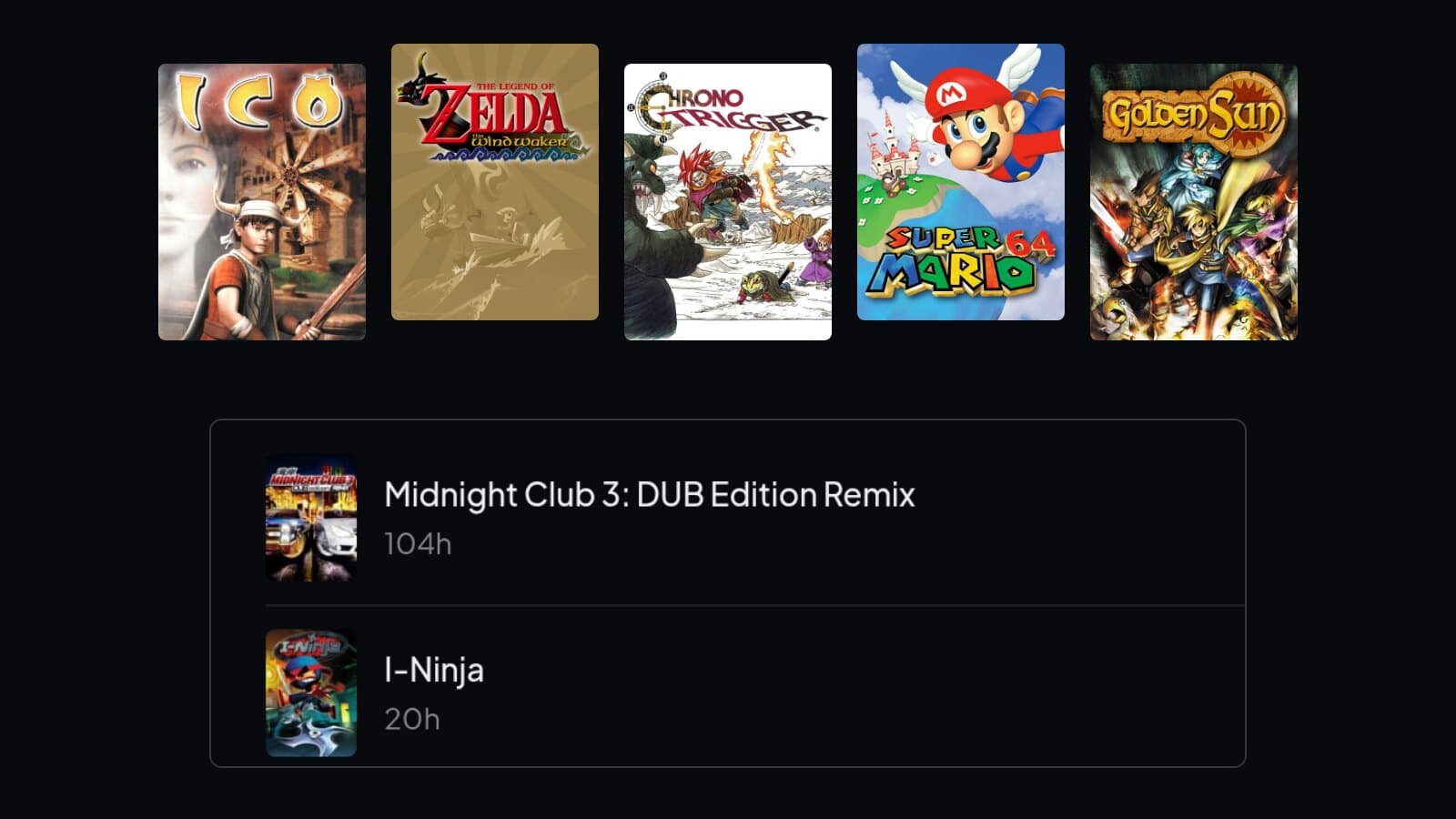
RetroAchievements knows which classics you have played and which achievements you have unlocked. Connecting it brings those games into your journal with the right console and dates, and your achievements show up on each game. The rest, like whether you finished and what you thought, is yours to add.
Step 1: Find your Web API key
playedby.me reads your games through the RetroAchievements Web API, which needs your username and your personal Web API key. You find the key on your RetroAchievements settings page. Treat it like a password. playedby.me stores it encrypted, only sends it to RetroAchievements and deletes it if you disconnect.
Step 2: Connect your account
Open Import game library and pick RetroAchievements. Enter your username and paste the key, then select Find account. Check that it found the right profile, and the library is fetched. Nothing is saved until you have been through it.
Step 3: Pick your games
The import picks up games you have achievement progress in and the games you have played recently. Each one is matched against the catalogue by title and console, and the console becomes the platform of the playthrough. Untick what you do not want.
Hours come from the playtime RetroAchievements has recorded for each game. Older sessions can be missing it. Then the hours field says Unknown, and you can fill it in yourself.
If a game is already in your journal on the same console, it is linked to that playthrough. With more than one playthrough you choose, or start a new one. Your own rating, notes and hours stay as they are.
Step 4: Import
Select Import selected. The import runs in the background, so you can close the page. Dates come from your activity: the first achievement you unlocked becomes an estimated start, and if you unlocked every achievement, the last one becomes an estimated end. Estimates are marked so you can correct them. The import does not mark anything as completed, so set that yourself when you go through the games.
Step 5: Keep it up to date
Open RetroAchievements import again and fetch the library whenever you want new games and hours. Nothing gets duplicated. Hours on imported entries can go up, and hours you entered yourself are left alone. Achievements are fetched again when you open a game, so they stay current. If you disconnect, the key is deleted and everything you imported stays.
If a game is missing
Look under Filtered out first. Hacks, homebrew and other titles that are not in the catalogue end up there, and so do titles with Beta or Demo in the name. You can tick a filtered game anyway, or use Find in catalogue to match it yourself.
If the account is not found, check the username. If the key is rejected, copy it again from the settings page. You can always log a game by hand.
Connect RetroAchievements
A few clicks, and you choose every game.