Get your PS5 and PS4 history into one journal
All you need is your PSN ID. Import your PlayStation games with PS5 and PS4 playtime and dates into playedby.me, then add ratings and notes.
On this page
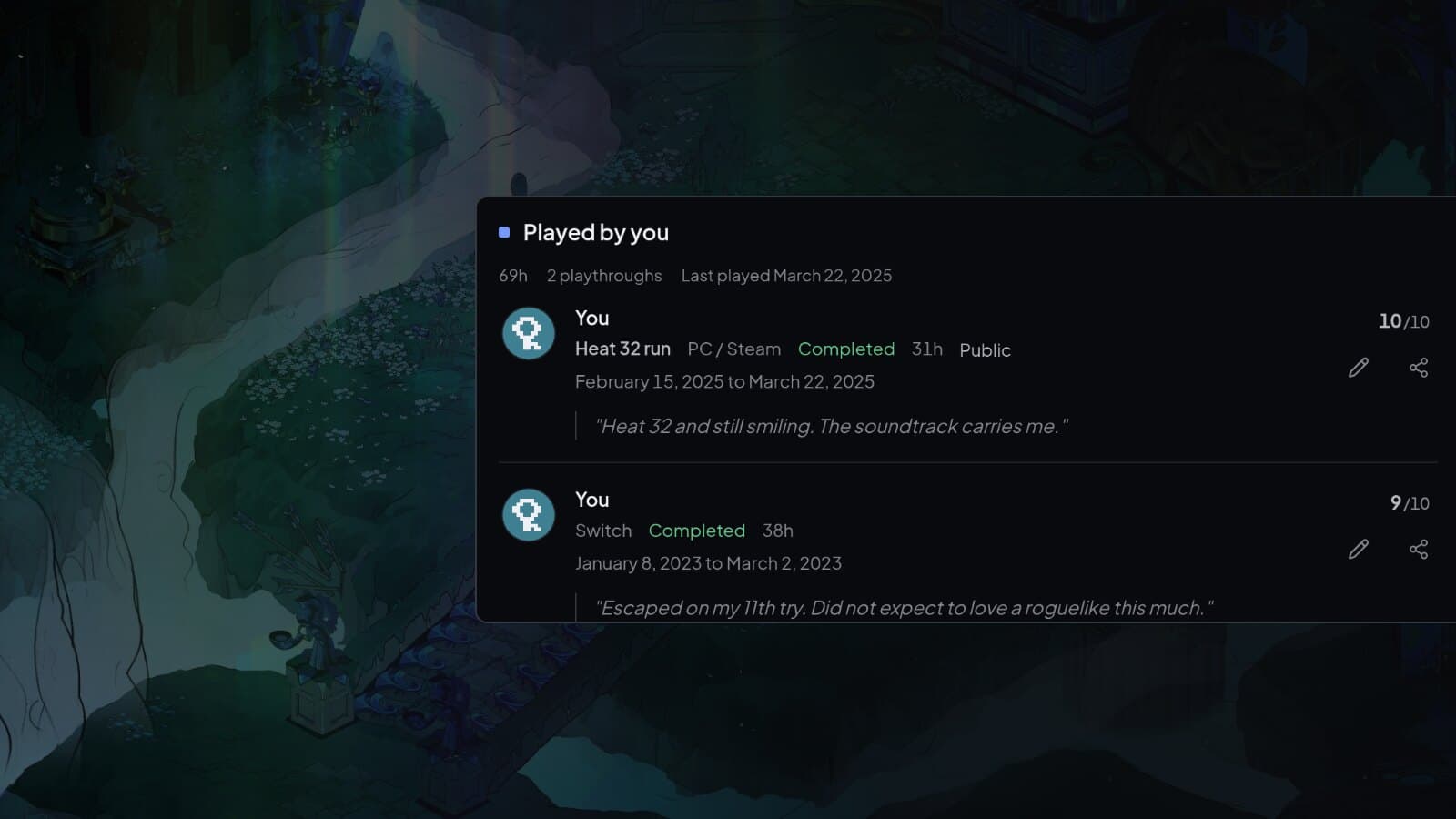
PlayStation keeps track of what you have played and for how long. It does not know whether you finished, what you thought or which run was which. Importing your PlayStation history gives you a starting point: you choose the games, Sony supplies the hours and dates, and you add the rest.
Step 1: Make your gaming history public
playedby.me reads the same gaming history other players can see on your profile, so it has to be open to everyone. In your PlayStation privacy settings, open Gaming | Media and set Who can see your gaming history to Anyone. That is Sony's default, so it may already be set. Sony explains where to find it on PS5, PS4 and the web. You only give playedby.me your PSN ID, never your password.
Step 2: Connect your account
Open Import game library and pick PlayStation. Enter your PSN ID, the name other players see, and select Find account. A profile link from PlayStation or PSNProfiles works too. If your gaming history is not public, you are told straight away. Otherwise you confirm the account and the library is fetched. Nothing is saved until you have been through it.
Step 3: Pick your games
Each game is matched against the catalogue. Apps like Netflix and YouTube are left out, and the platform comes from Sony, so PS4 and PS5 games are kept apart. Every game comes with the hours Sony has recorded and when you first and last played it. Untick what you do not want and fix the hours where they are off. If Sony has no playtime for a game, the field says Unknown and you can fill it in yourself.
If a game is already in your journal on the same platform, it is linked to that playthrough. With more than one playthrough you choose, or start a new one for a replay. Your own rating, notes and hours stay as they are, and Sony only fills in what is missing.
Step 4: Import
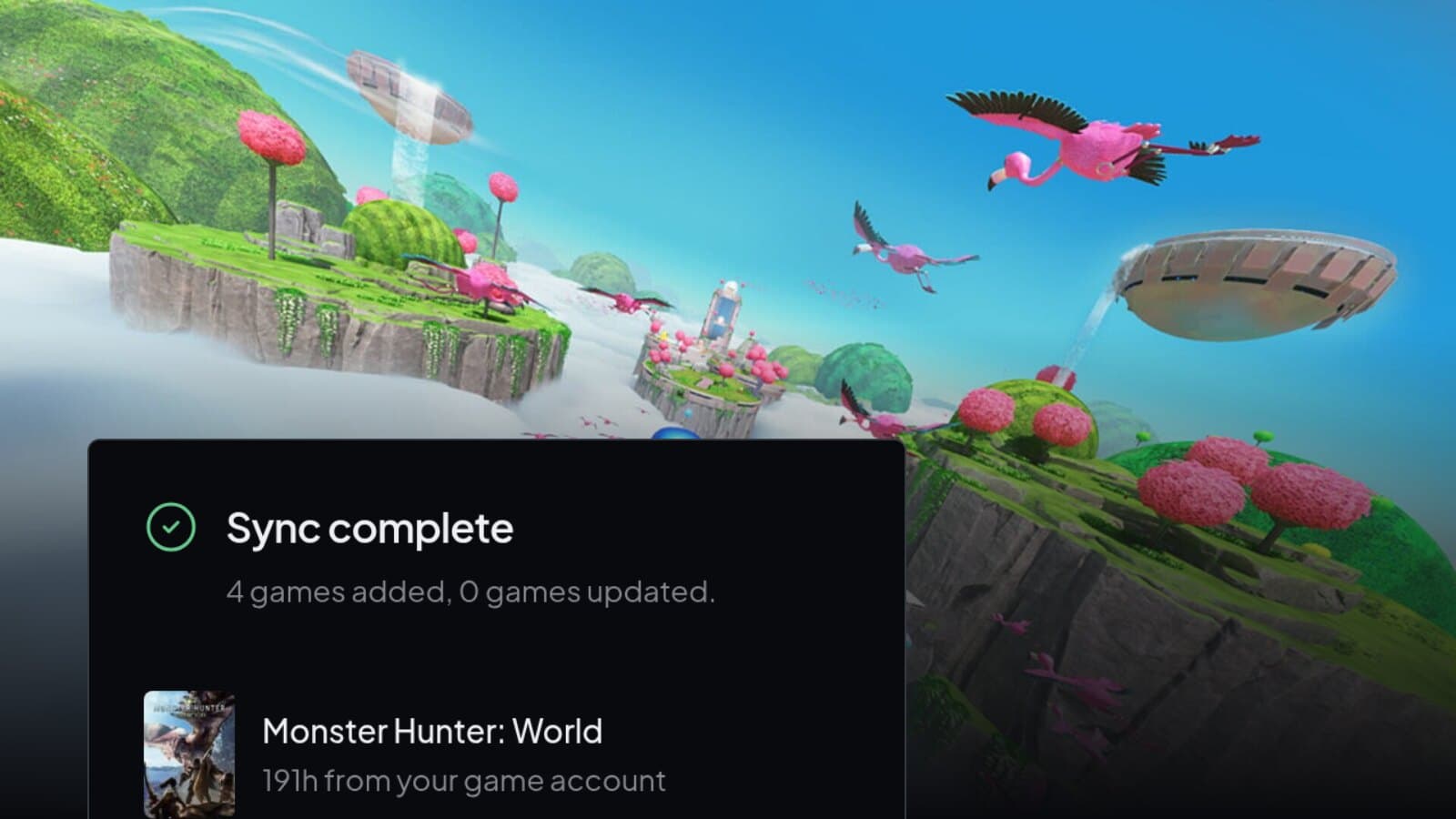
Select Import selected. The import runs in the background, so you can close the page. When it is done you get a summary, and from there you can go straight to Complete your game history to add ratings and notes. The first time you played a game becomes the start date of its new entry. Trophies come from the same connection and show up on the game's page.
Step 5: Keep it up to date
Open PlayStation import again and fetch the library whenever you want new games and hours. Nothing gets duplicated. Hours on imported entries can go up, and hours you entered yourself are left alone. If you disconnect PlayStation, everything you imported stays.
If a game is missing
Look under Filtered out first. Games you never played or played for less than 30 minutes, demos, betas, playtests and titles without a catalogue match end up there, with the reason next to each one. You can search the catalogue and match a game yourself.
If the account is found but the library will not load, check the gaming history setting from step 1. If PlayStation is temporarily unavailable, try again later. You can always log a game by hand in the meantime.
Import your PlayStation games
A few clicks, and you choose every game.