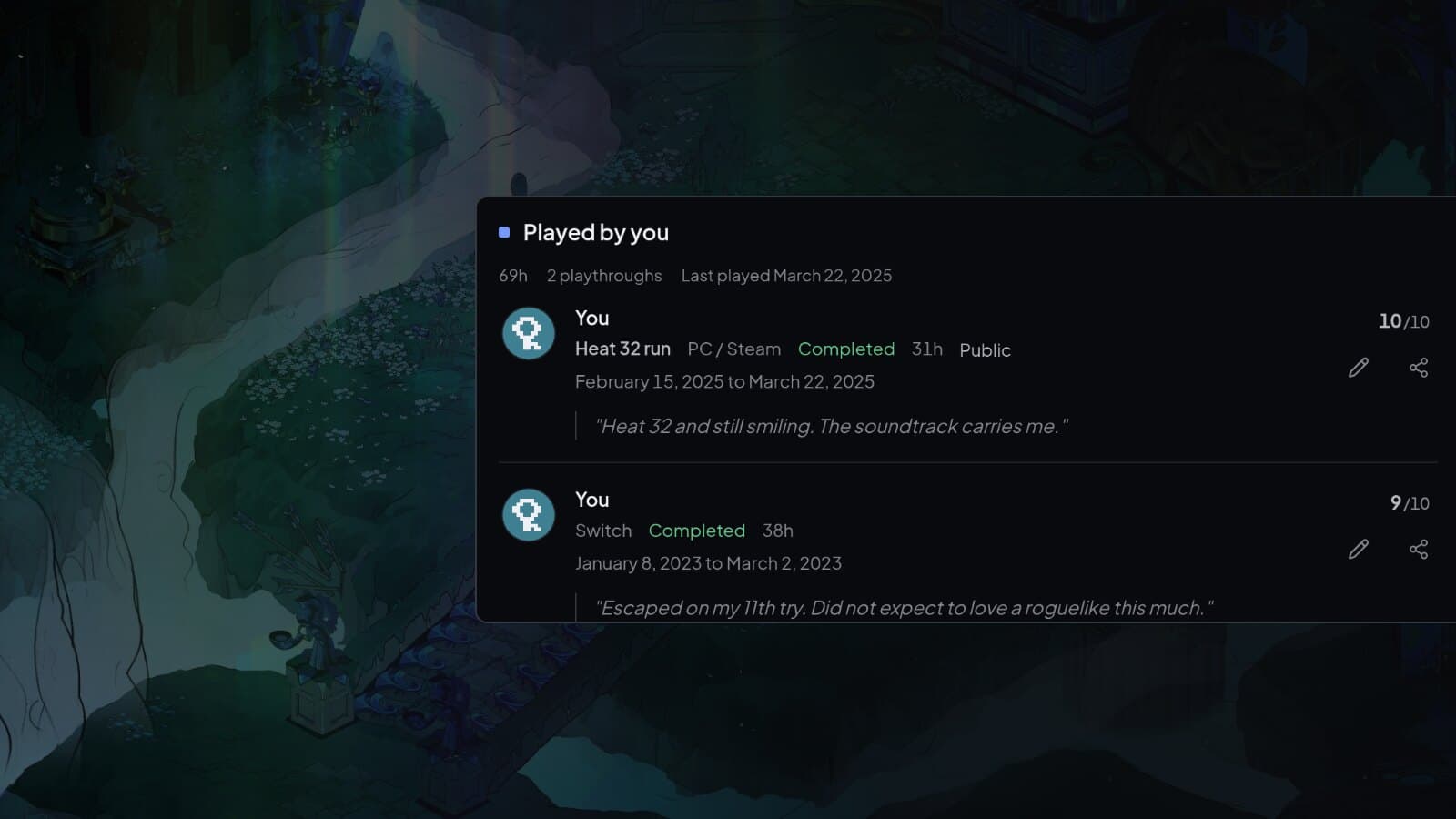
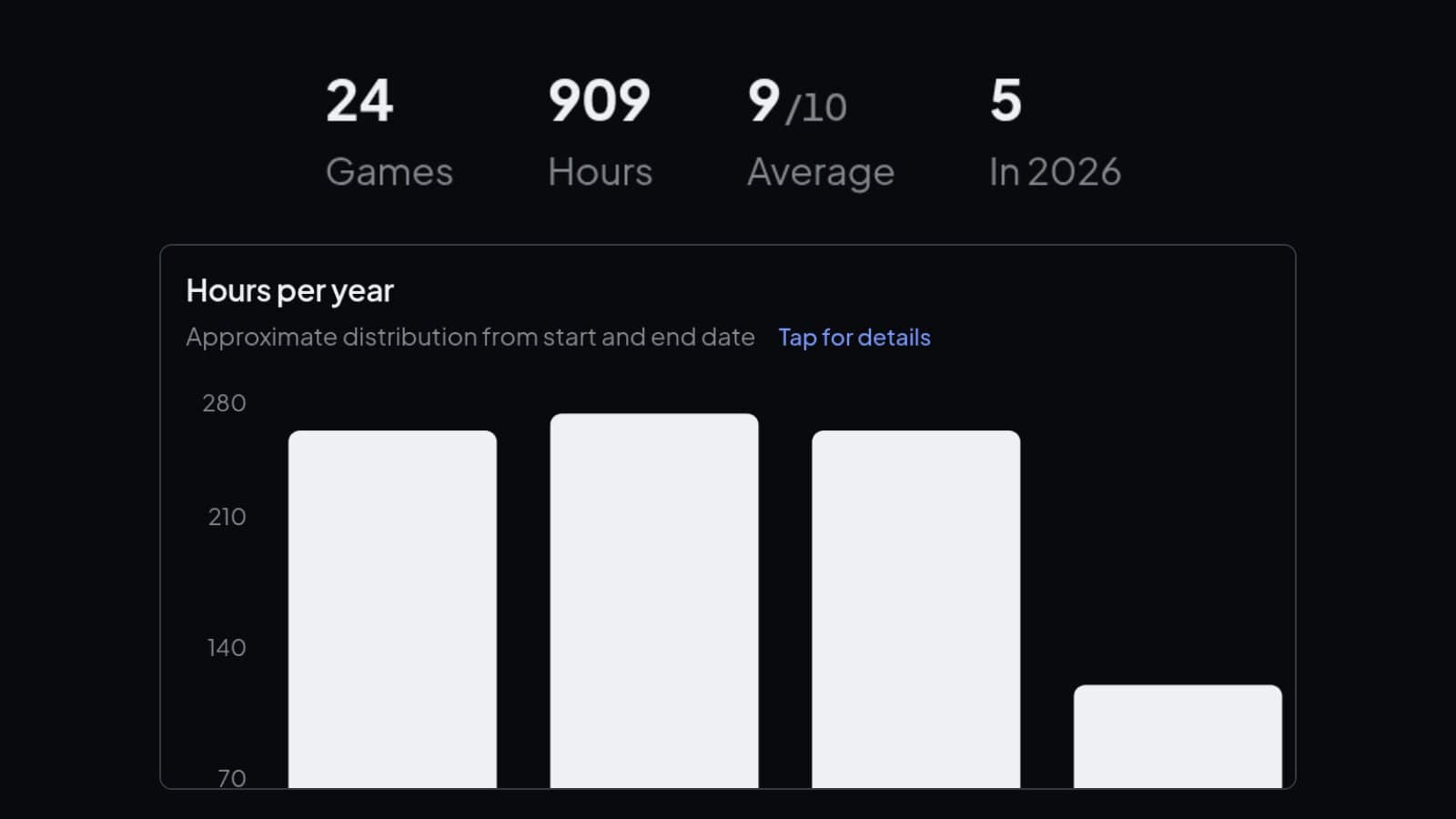
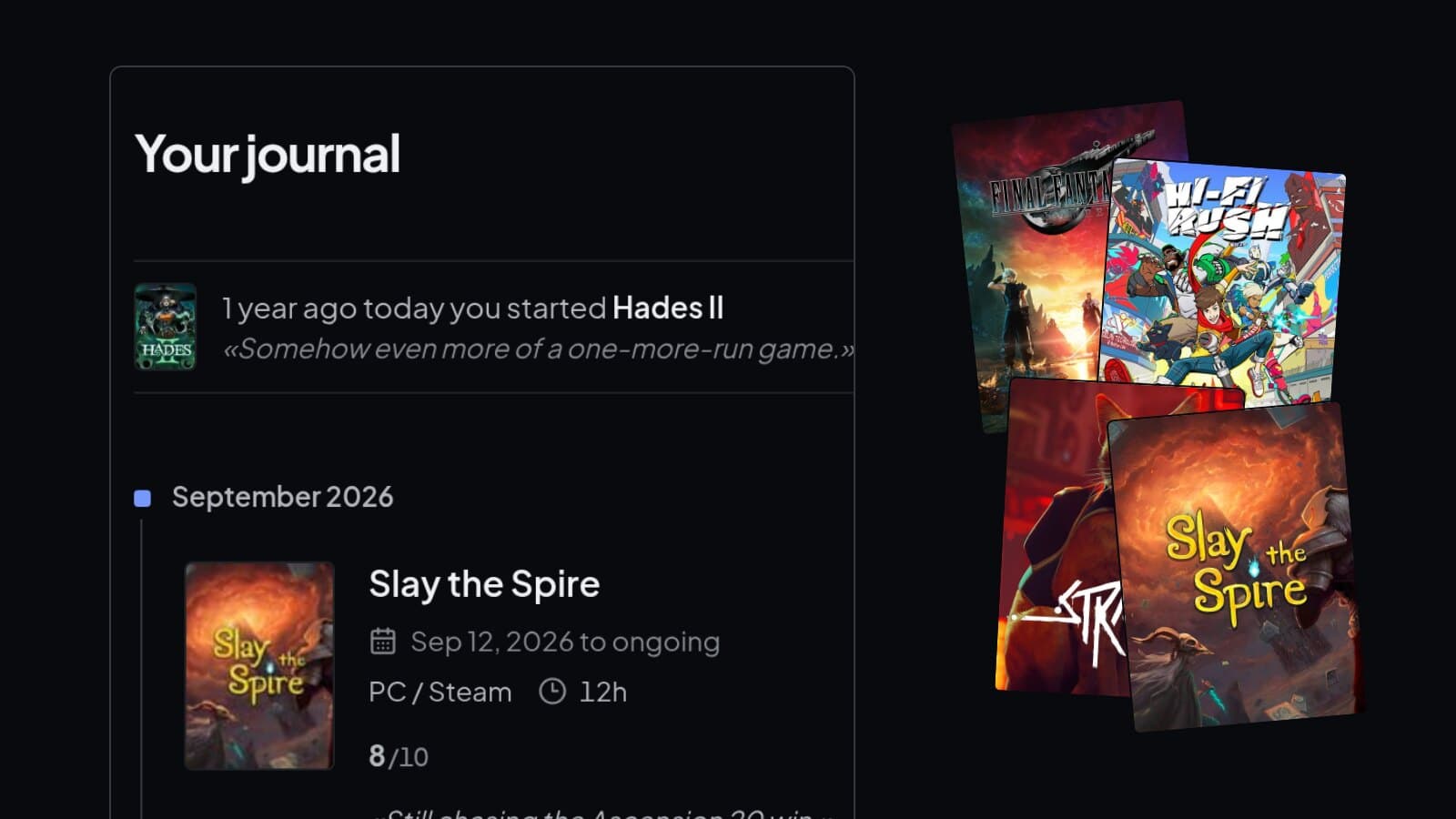
Switching game trackers without starting over
Import your game history from Backloggd, HowLongToBeat, Grouvee, GameTrack, GameSHLF, Completionator or your own CSV or Excel spreadsheet, and check every match first.
On this page
If you have logged games somewhere else, you do not have to start over. playedby.me reads exports from Backloggd, HowLongToBeat, Grouvee and other game trackers, and from your own CSV or Excel spreadsheet. It shows you every match and saves only the rows you tick.
Step 1: Export from your old tracker
These are the exports playedby.me recognises, and where to find them:
- Backloggd, through the Backloggd+ browser extension: Settings and Data Management. Pick the JSON export to keep every playthrough. The CSV only has the first one.
- HowLongToBeat: Export on your profile.
- Grouvee: Settings, then export your collection to a CSV file.
- GameTrack: Settings, then Export database.
- GameSHLF: Game Library, then Export Excel. This needs a Backer account.
- Completionator: Collection, then Export to CSV/XML. Choose CSV.
- Game Library Exporter: install the userscript, open your library and choose CSV from the export menu.
Upload the file as it is. An edited export can lose the columns it is recognised by.
Step 2: Upload the file
Open Import from file under Settings and Data, and choose the file or drop it on the page. CSV, TSV, Excel and the Backloggd+ JSON all work, up to 5 MB and 2,000 rows. You do not pick the service. It is recognised from the columns.
Step 3: Check the matches
Every row is matched against the game catalogue before anything is saved. Rows marked Ready are ticked for you. Open Review import values on a row to see what was in the file next to what will be saved.
A row marked Needs review did not give a sure match. Find the right game, import it without catalogue data, or leave it out. Entries you already have show up as Already exists and are skipped unless you choose Import anyway. Rows with errors tell you what to fix in the file.
Step 4: Import
Select Import. Everything you ticked is saved in one go, and if something fails, nothing is saved. Games without any logged data go to your backlog. When you log one of them later, it leaves the backlog by itself.
What carries over
That depends on what the old service exports. Titles, status, ratings and backlog or wishlist come over from all of them. Backloggd and GameSHLF exports have no platform, so those playthroughs get an unknown platform you can change later. GameSHLF, Completionator and Game Library Exporter have no hours or dates. Ratings are converted to the 1 to 10 scale.
Your own spreadsheet
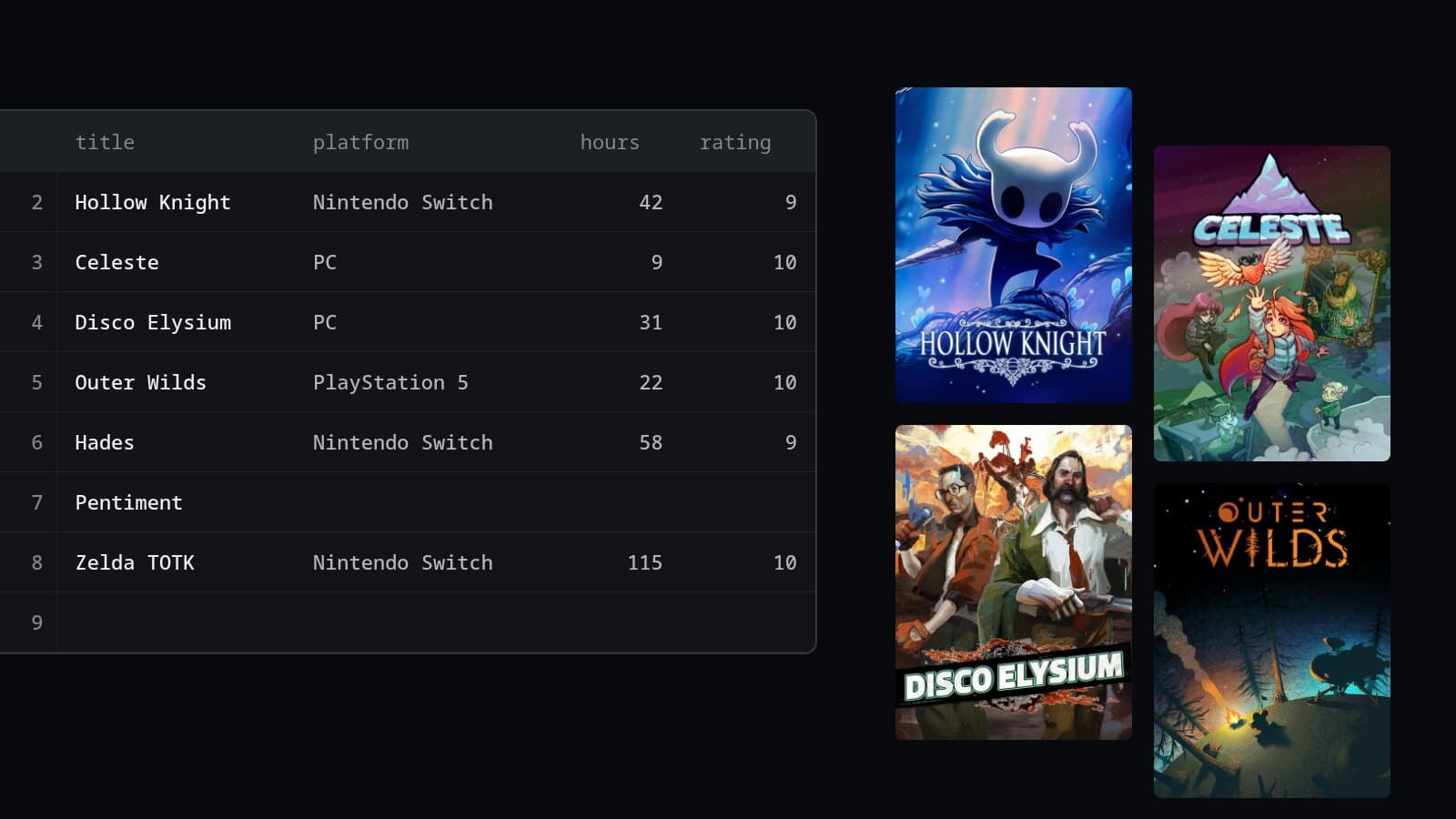
Only a title column is required. The columns playedby.me looks for are title, platform, hours, start_date, end_date, completion_status, rating, notes and library_status, and common alternatives like Game, Name or Playtime work too.
- Dates are YYYY-MM-DD or DD.MM.YYYY.
- Ratings are 1 to 10. A column called Stars is read as five stars.
- completion_status takes completed, not_completed or completed_100.
- library_status takes backlog or wishlist.
- A row with nothing but a title goes to your backlog.
Bring your history over
You see every match before anything is saved.